Create Quotation
Create Quotation Instructions
-
Step 1
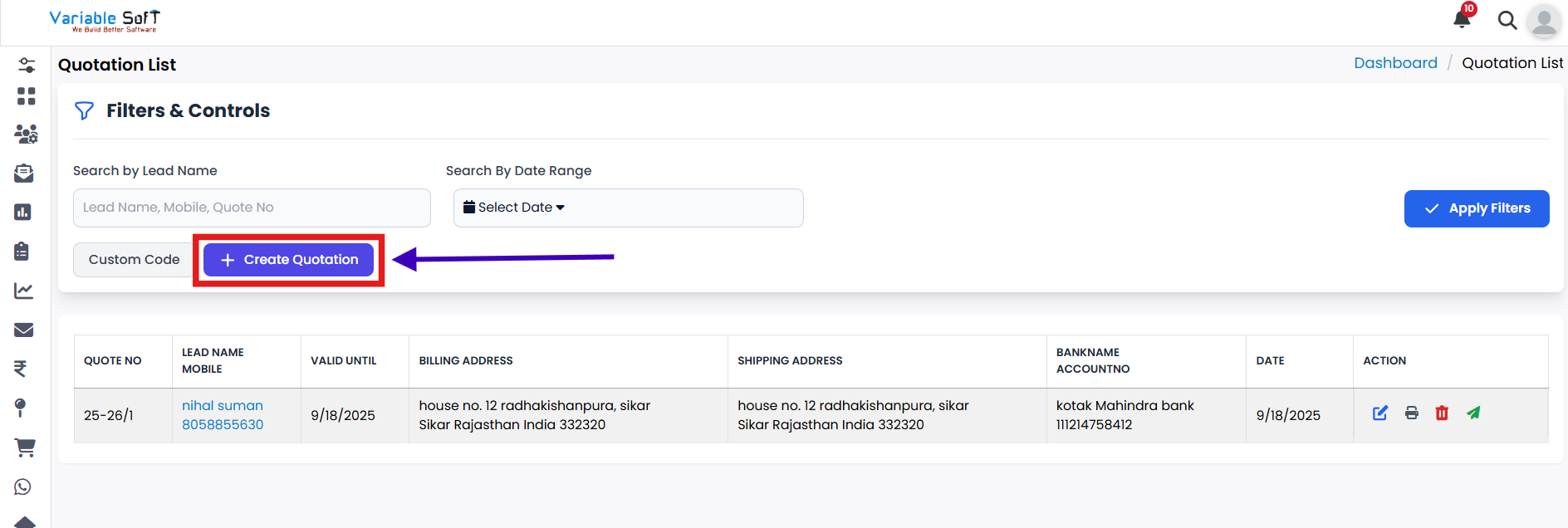
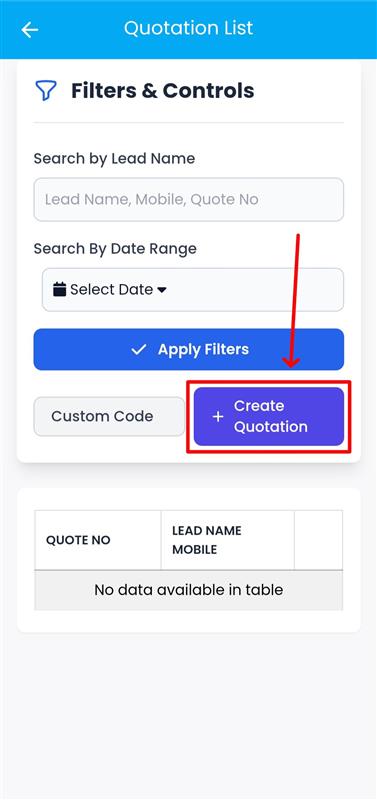
To create a quotation, click on the Create Quotation button.
-
Step 2
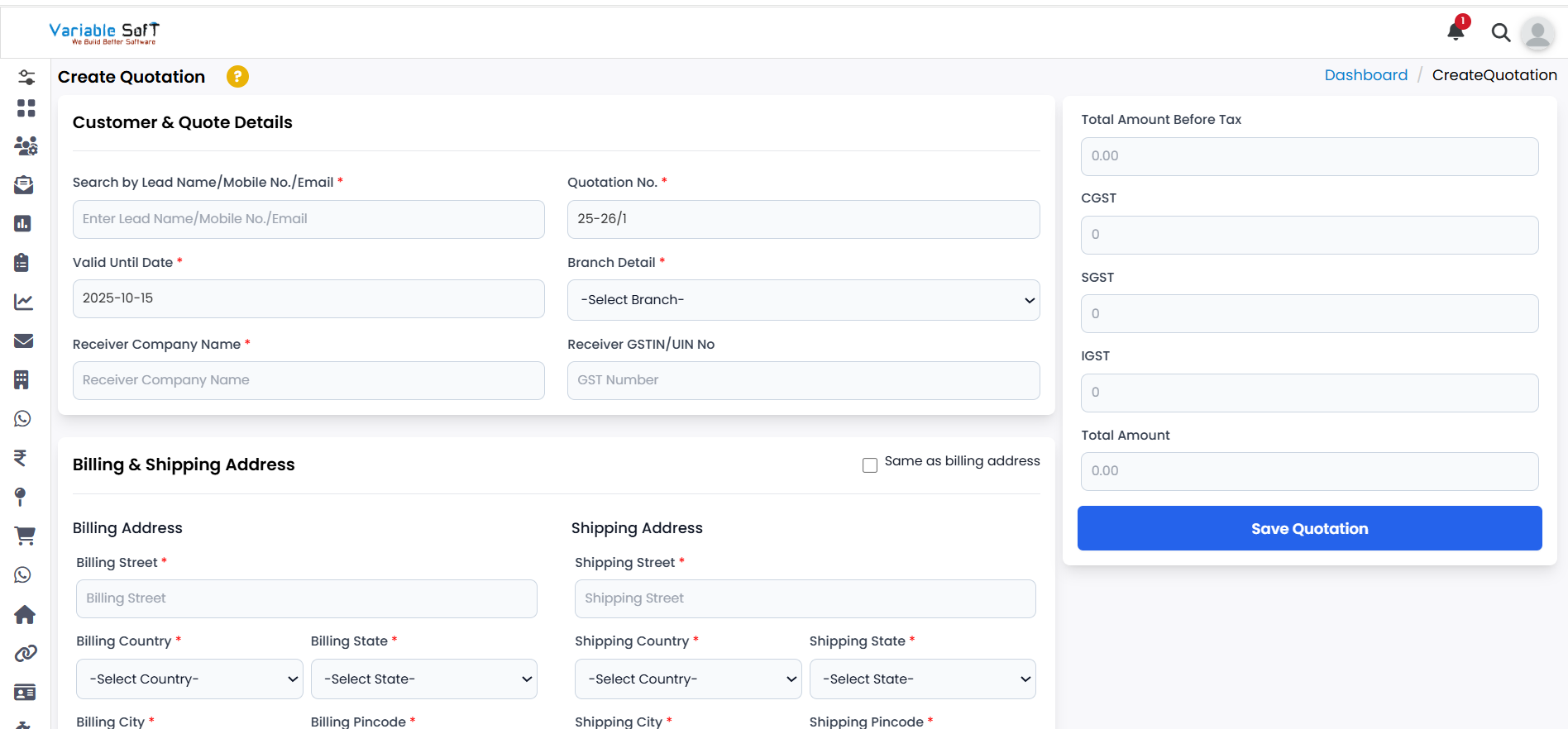
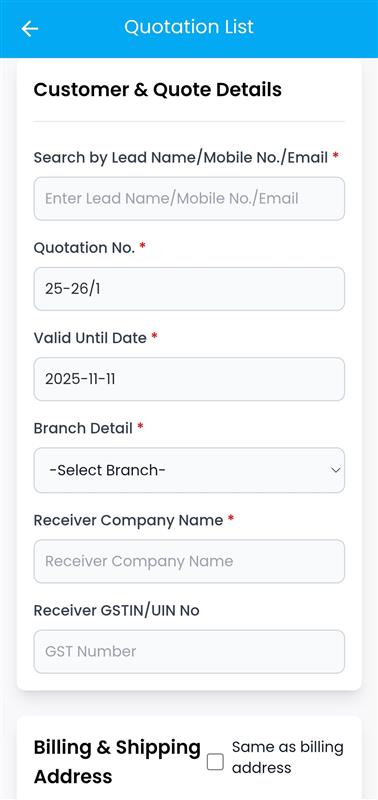
A Create Quotation form will open. Fill the Customer & Quote Details section.
-
Step 3
Enter the Billing & Shipping Address details as required.
-
Step 4
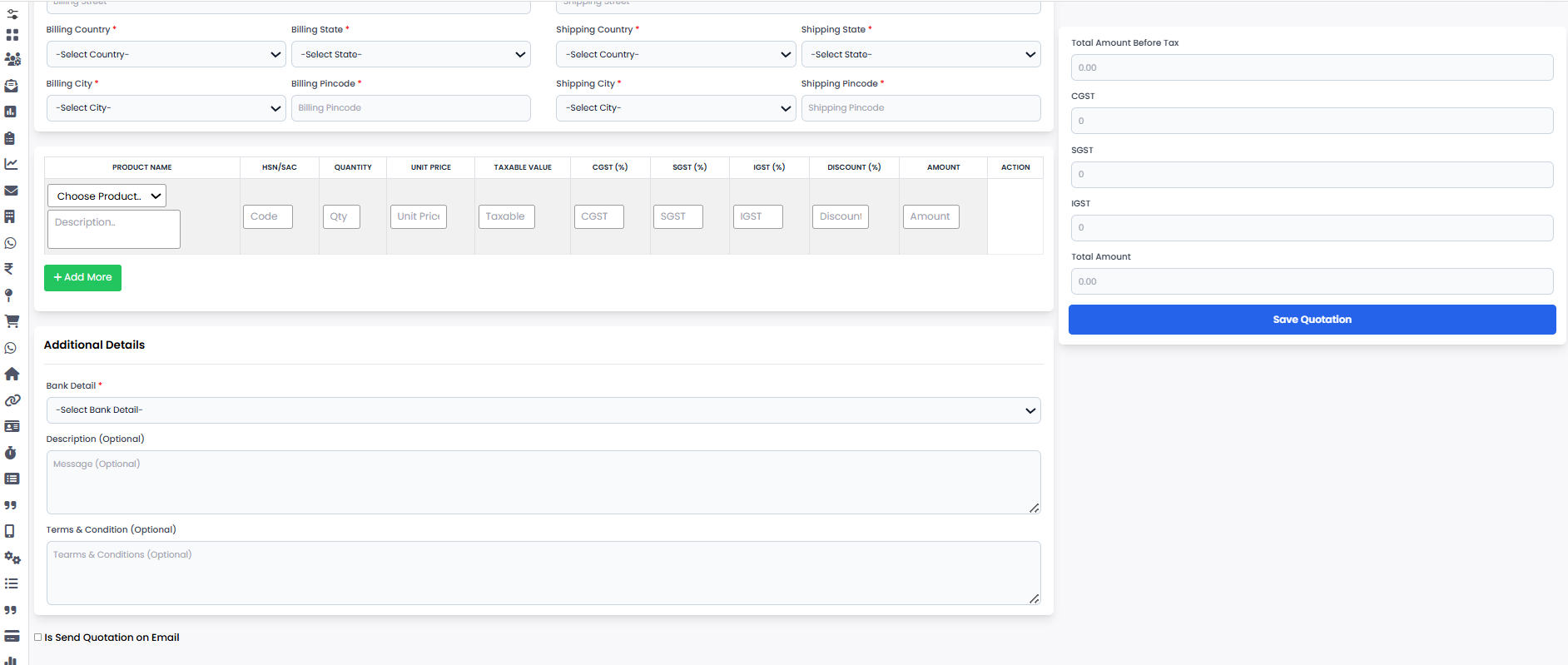
Select the Product Name. If you want to add more than one product, click on the Add More option.
-
Step 5
Fill in the Additional Details section, including Bank Details and other important information.
-
Step 6
In Is Send Quotation on Email, choose if you want to send it via email. Select the sender’s Mail ID, enter the Receiver’s Email, add a subject, and review the content.
-
Step 7
Finally, when all details are filled, click on the Save Quotation button. Your quotation will be created successfully.
Explore Our App Interface
A quick glance at how VSCRM looks on your phone.
💡 Pro Tip: Fill Quotation Details Carefully
Always double-check customer details, product information, prices, and email IDs before saving the quotation to avoid errors and ensure accuracy.