User Expenses
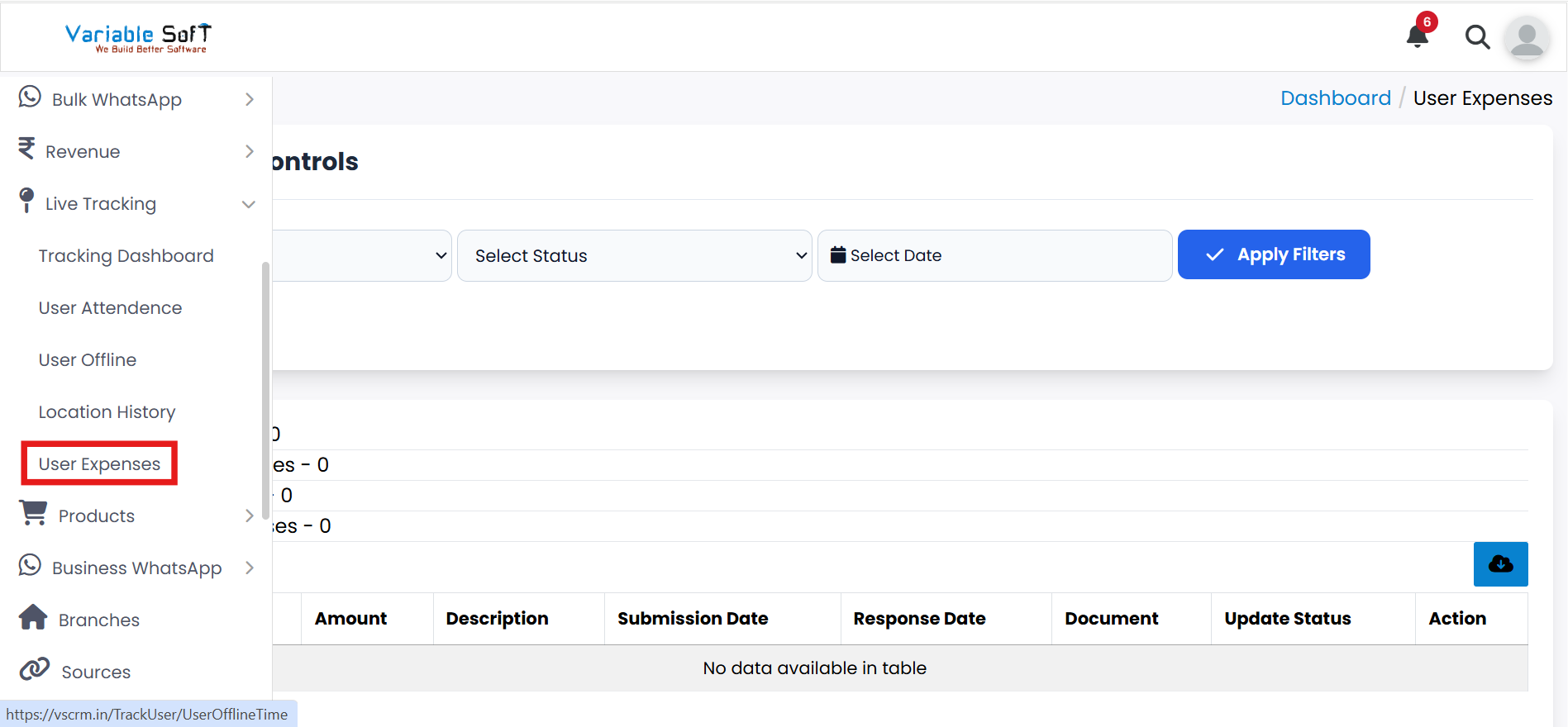
To access this feature, open your CRM Dashboard and click on Live Tracking. From the dropdown menu, select User Expenses to open the User Expenses page.
User Expenses Instructions
-
Step 1
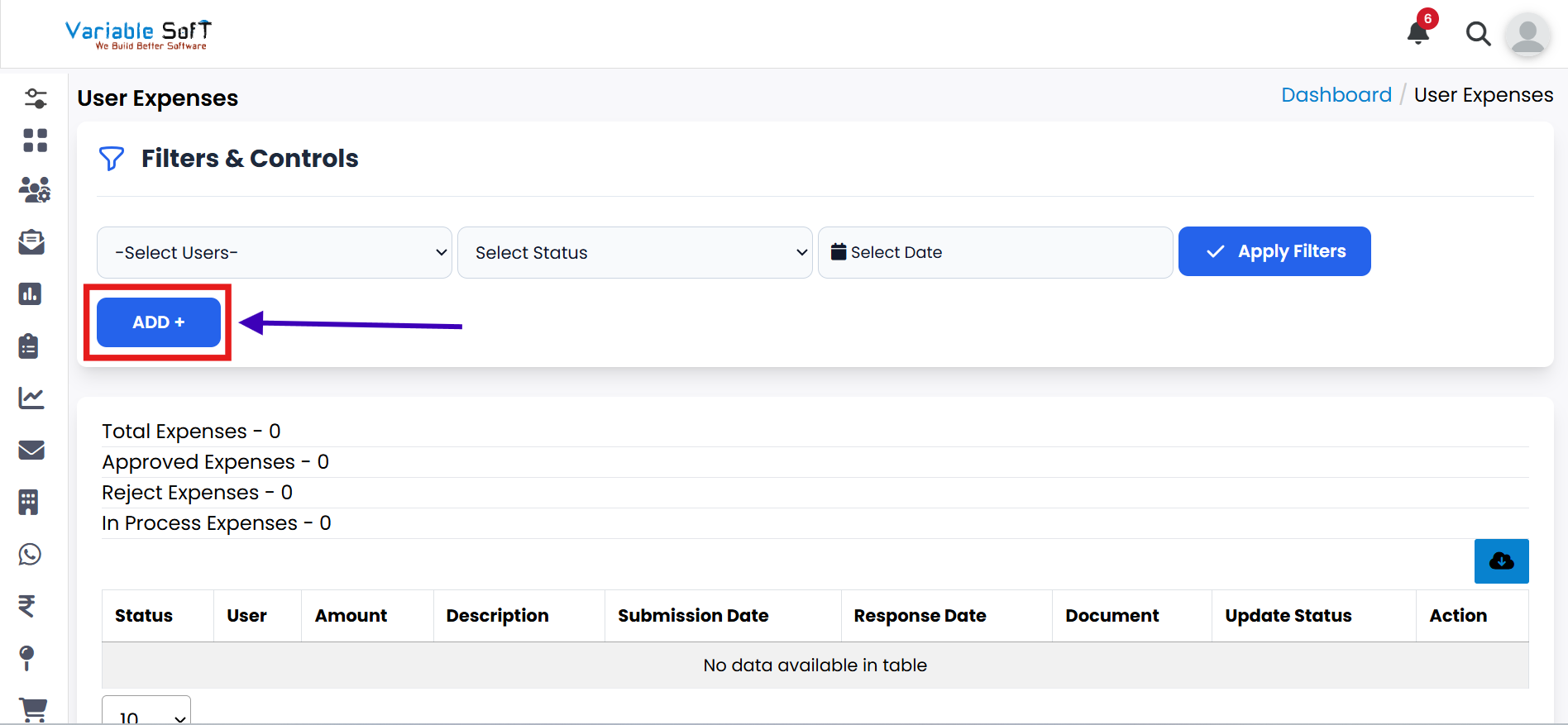
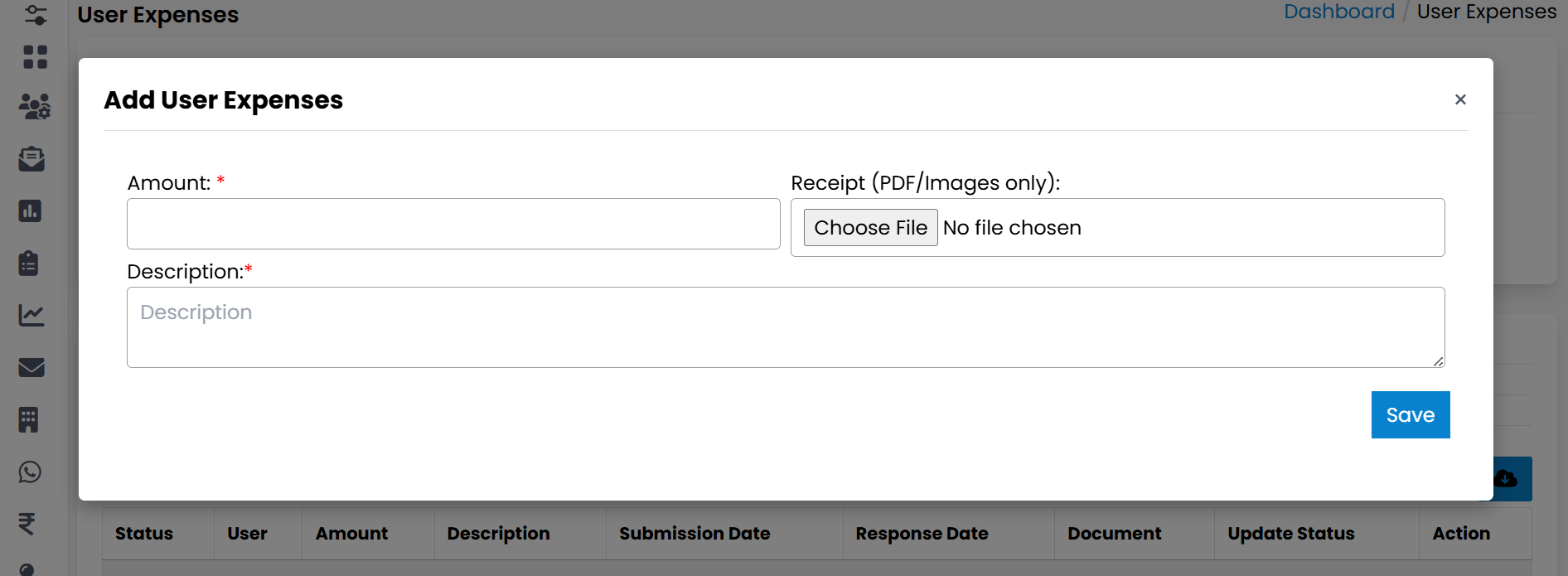
In this section, you can add all the expenses that occurred during your visit by clicking the Add button.
-
Step 2
You can view the following expense categories for each user:
- Total Expenses – The total number of expenses recorded.
- Approved Expenses – Expenses that have been approved.
- Rejected Expenses – Expenses that have been rejected.
- In Process Expenses – Expenses that are still under review.
-
Step 3
You can track the status of each expense by viewing the relevant section and the number of items in each category.
-
Step 4
If you need to download a report of all the expenses, click on the Download Report button.
-
Step 5
The User Expenses Report will be downloaded successfully as a file, containing all the expenses details.
💡 Pro Tip: Ensure Accurate Tracking
Always remind users to keep their GPS and internet enabled during working hours. This ensures that their location history, routes, and distance are tracked accurately in CRM.