Create Check List
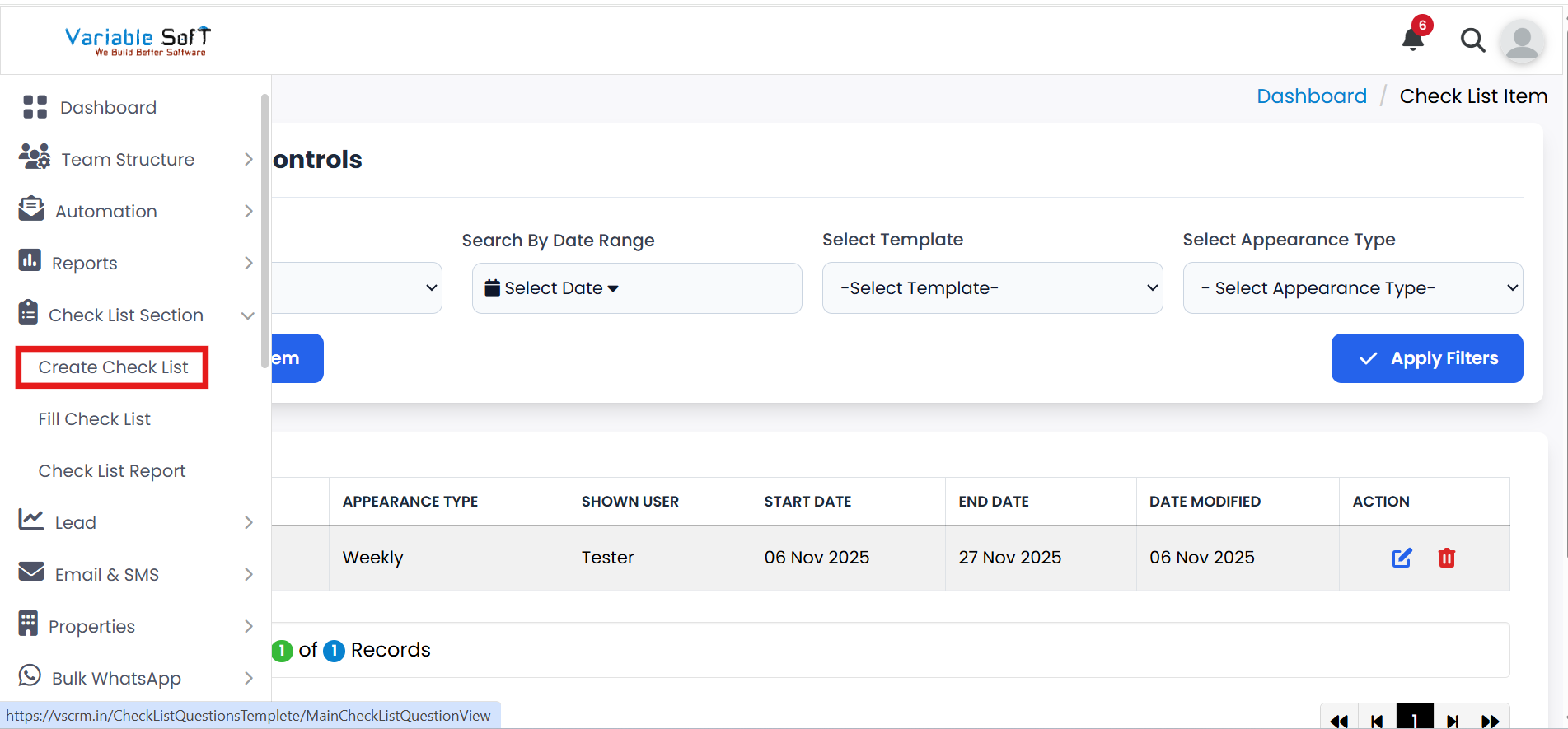
To access this feature, open your CRM Dashboard and click on Check List Section. From the dropdown menu, select Create Check List to open the Check List Item page.
Setup Instructions
-
Step 1
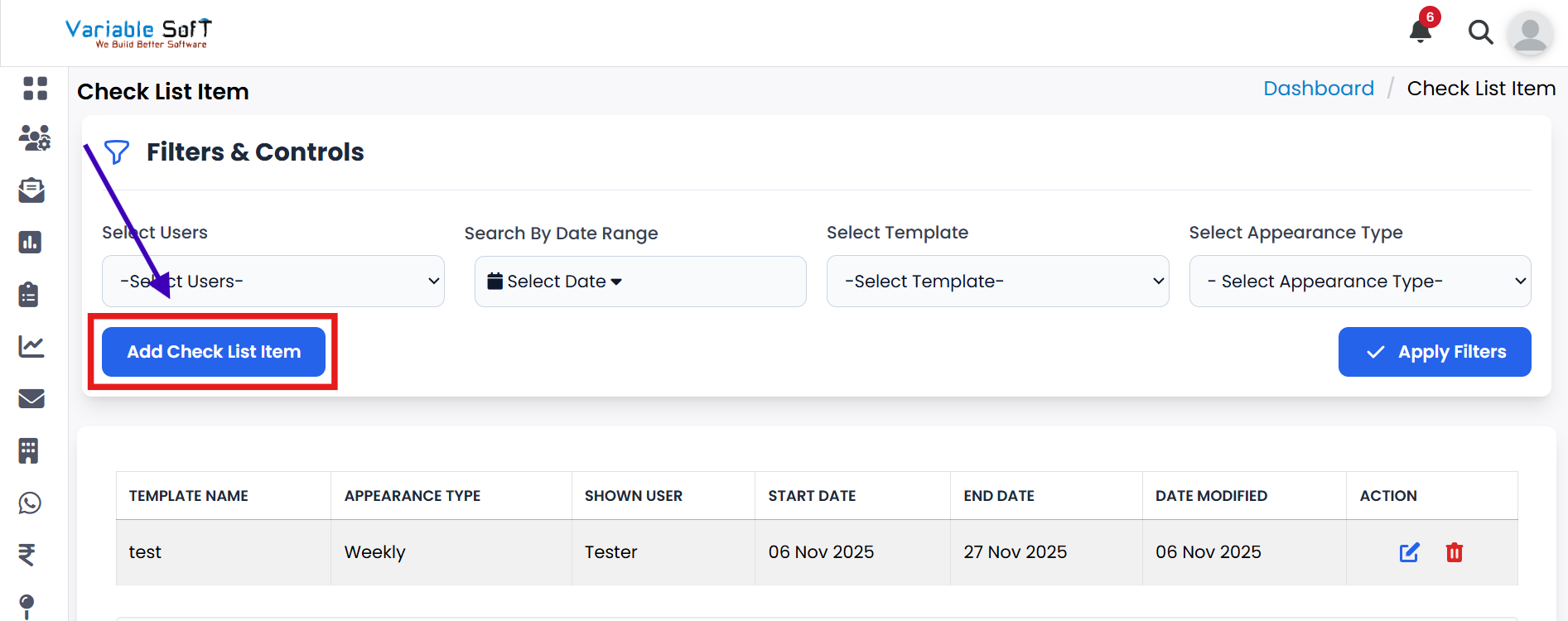
Click on the Add Check List Item button to create a new checklist for a user.
-
Step 2
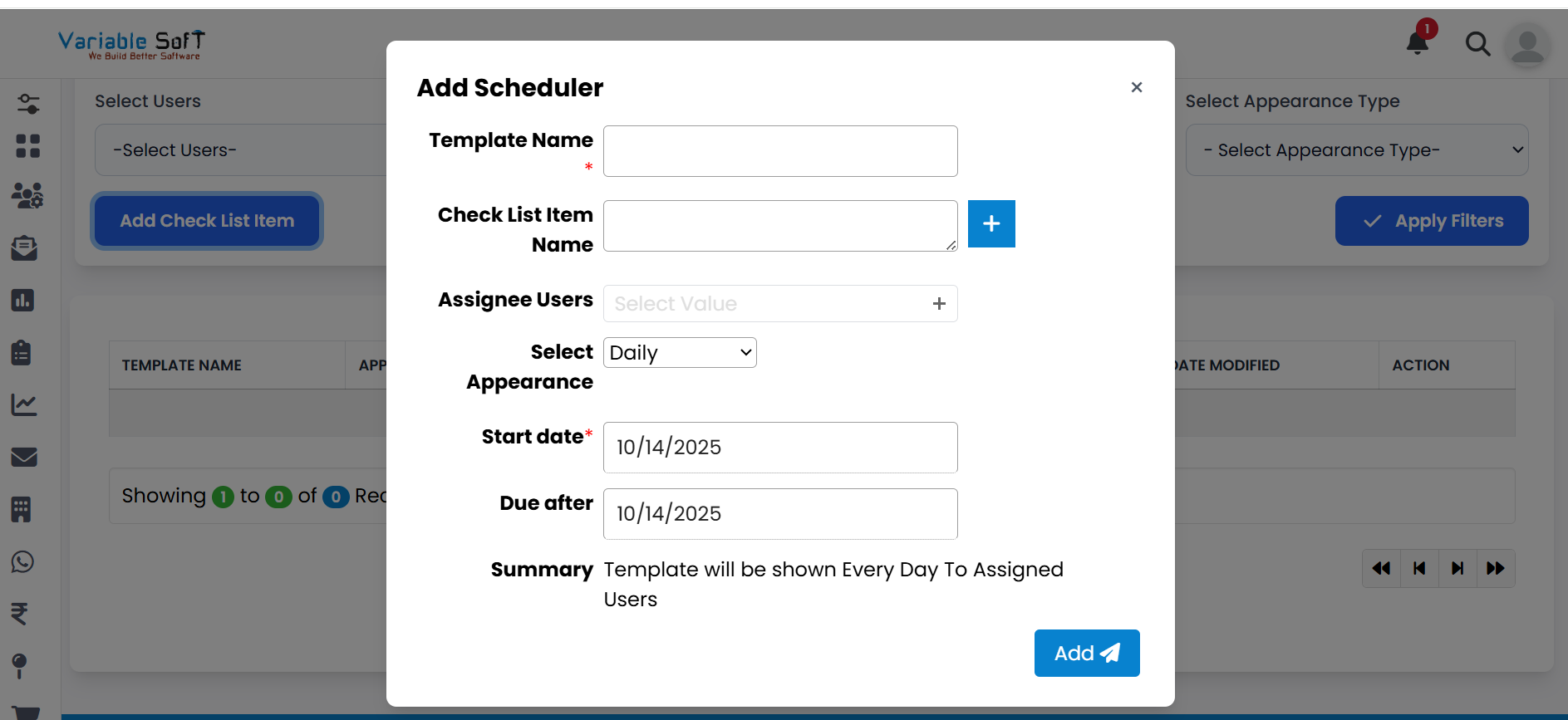
A pop-up named Add Scheduler will open, where you need to fill in all the required information.
-
Step 3
In the Check List Item Name field, enter the tasks you want to assign.
-
Step 4
You can add multiple tasks by clicking the Add button as per your requirement.
-
Step 5
In the Assignee Users field, select the users you want to assign tasks to. You can assign the same task to multiple users if needed.
-
Step 6
After filling all required fields, click the Add button to save the checklist.
-
Step 7
Your checklist is now created successfully and assigned to the selected users.
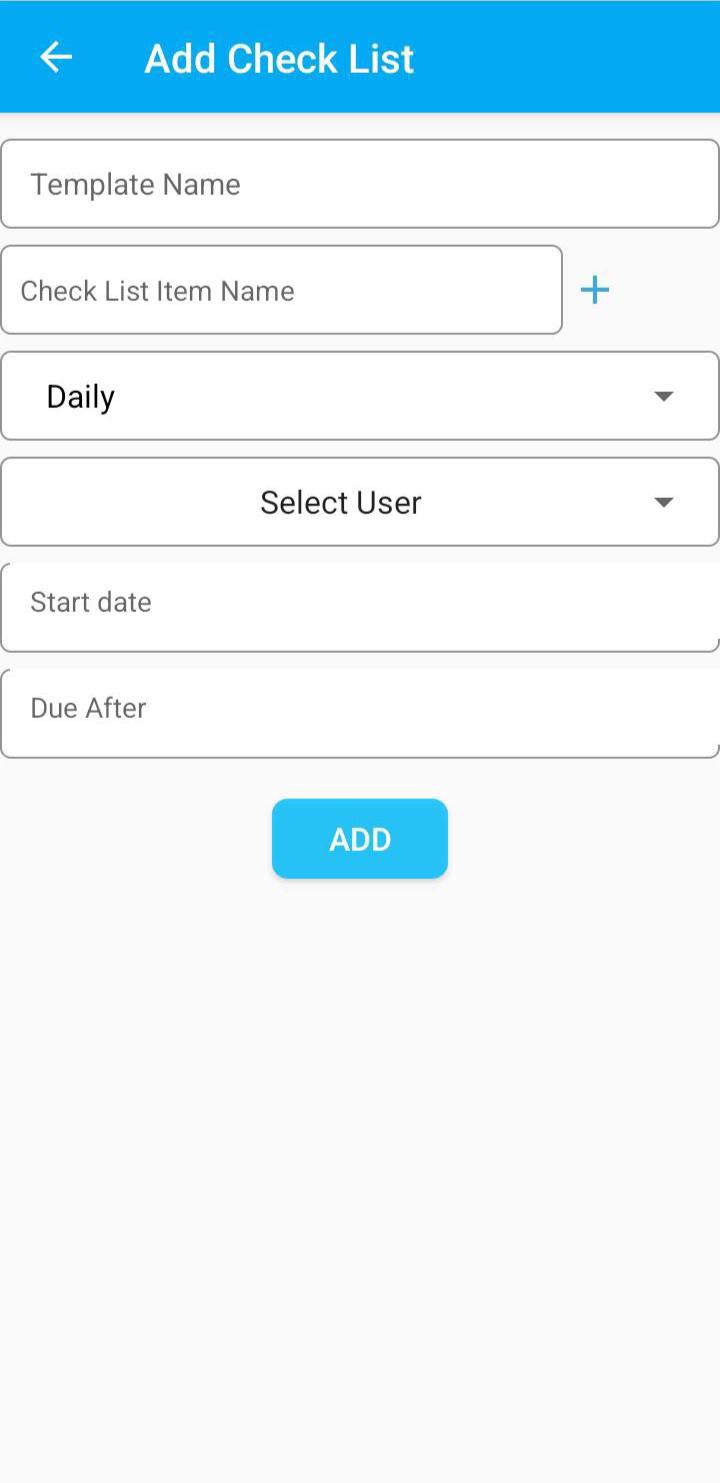
Explore Our App Interface
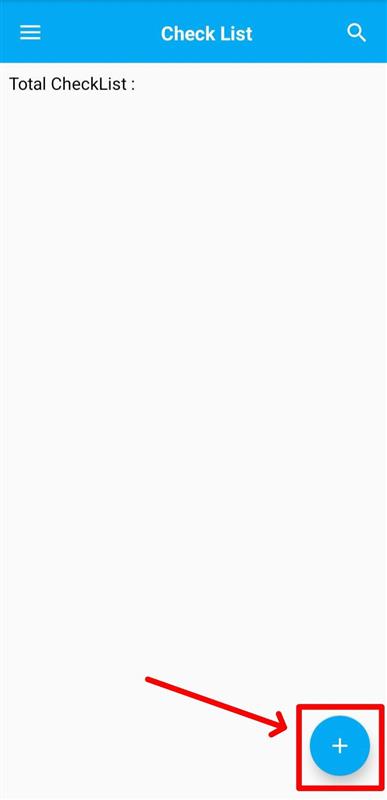
A quick glance at how VSCRM looks on your phone.
💡 Pro Tip: Keep your checklist simple
Always keep checklist tasks clear and specific. This ensures that assigned users can complete them without confusion and your workflow remains smooth and efficient.