WA Template Actions
To access this feature, open your CRM Dashboard and click on Business WhatsApp. From the dropdown menu, select WA Template Actions to open the WhatsApp Template And Action page.
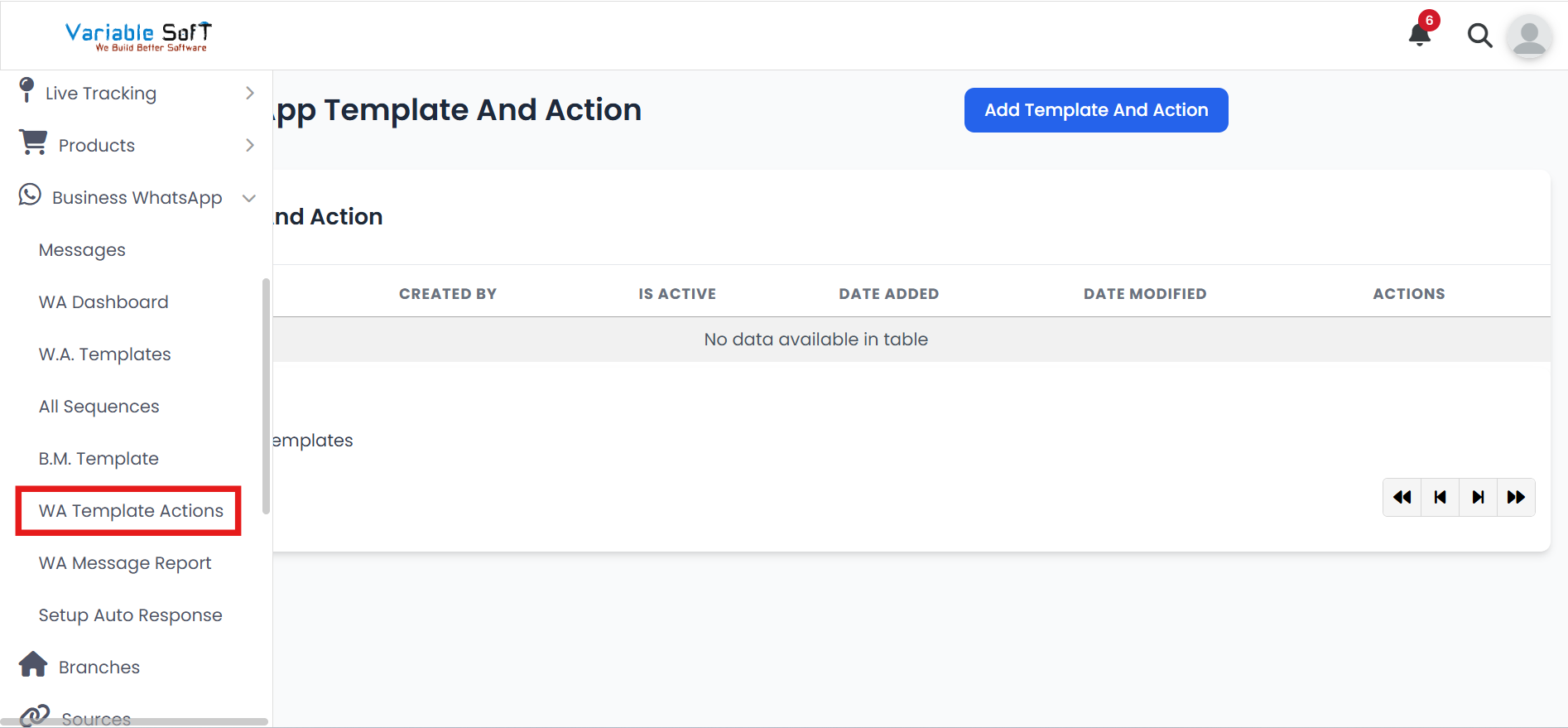
WA Template Actions Instructions
-
Step 1
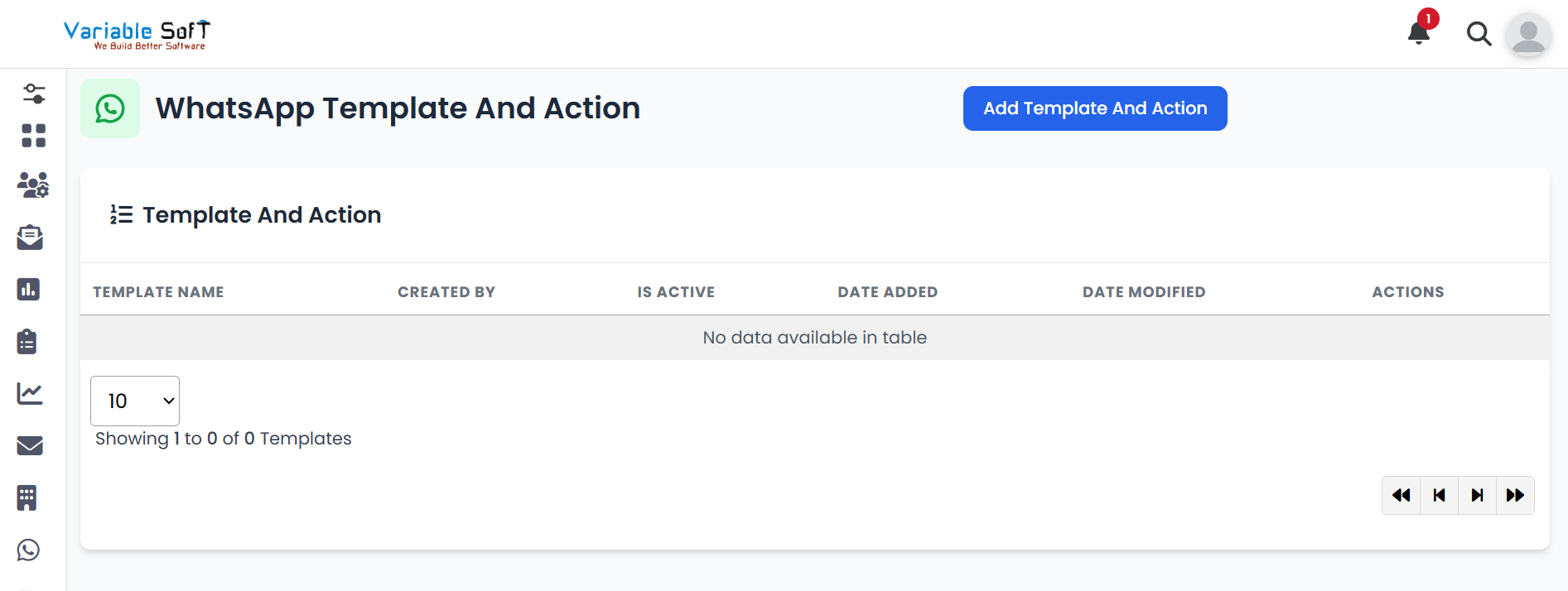
To add a new template and its action, click on the Add Template And Action button.
-
Step 2
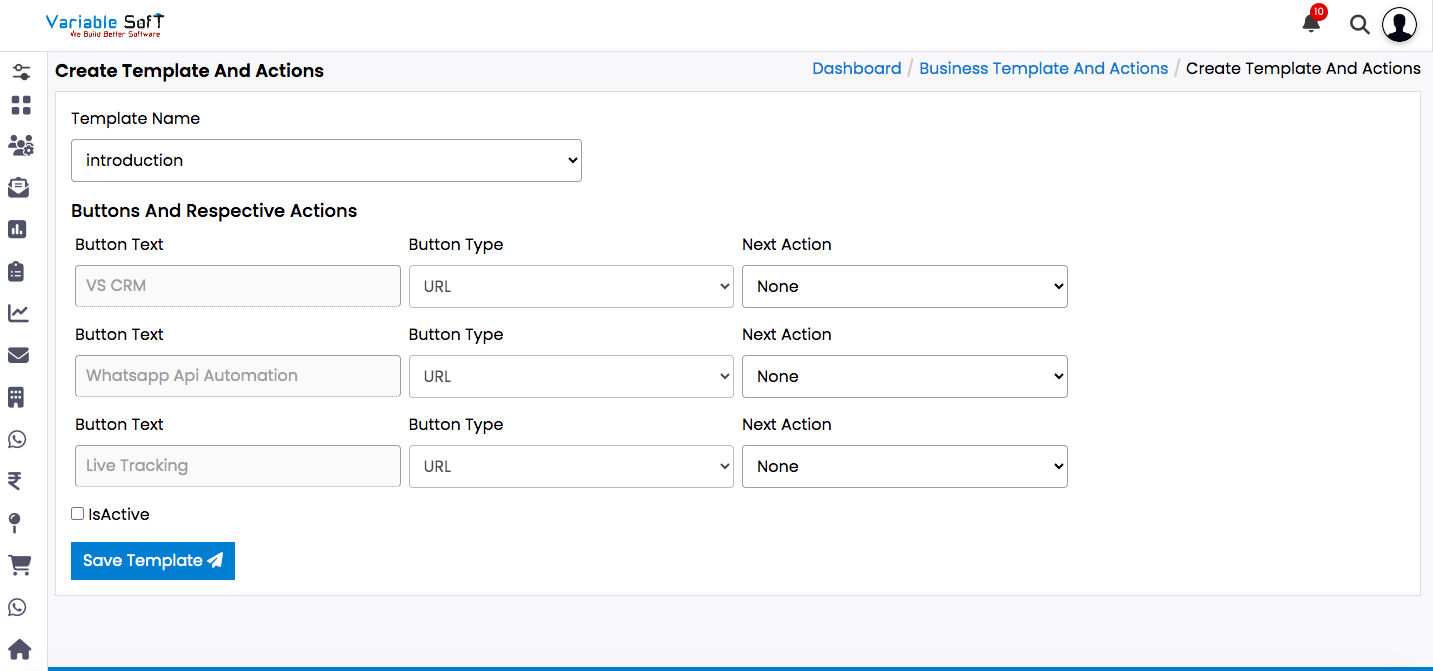
The Create Template And Actions page will open, where you need to select a Template Name.
-
Step 3
After selecting the template, provide the required details:
- Button Text – Define the label that will appear on the button.
- Button Type – Choose the type (e.g., URL, Phone Number).
- Next Action – Select what should happen when the button is clicked.
- Next Template Name – Appears only after selecting Next Action; choose which template should trigger next.
-
Step 4
Mark the template as IsActive if you want it enabled.
-
Step 5
Finally, click on the Save Template button to save your configuration.
Quick Actions
⚠️ Important Note
WA Template Actions help you automate messaging sequences effectively. Make sure to configure each step carefully for smooth communication.