Tracking Dashboard
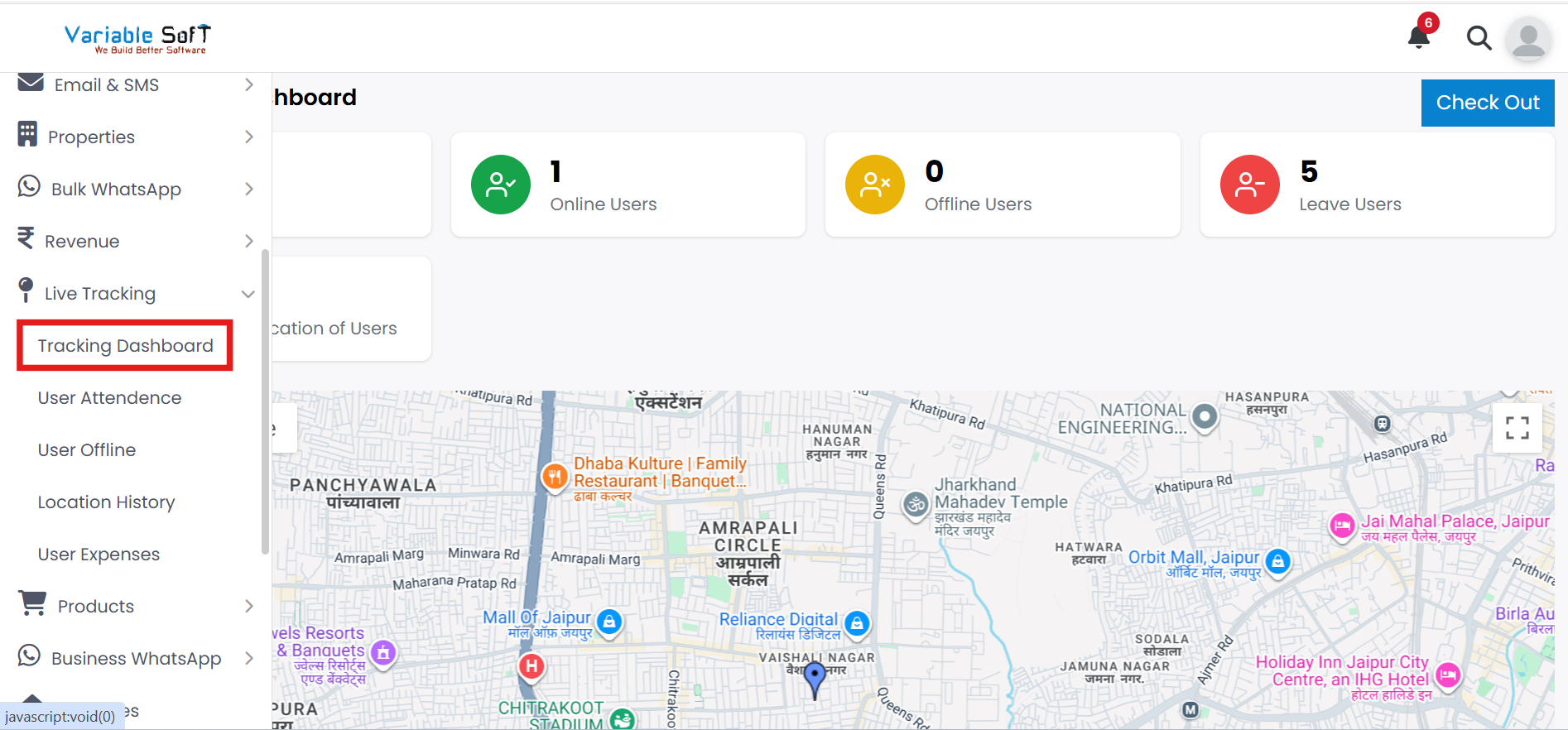
To access this feature, open your CRM Dashboard and click on Live Tracking. From the dropdown menu, select Tracking Dashboard to open the Live Tracking Dashboard page.
Tracking Dashboard Instructions
-
Step 1
If you want to track your users, choose the Tracking Dashboard option under Live Tracking.
-
Step 2
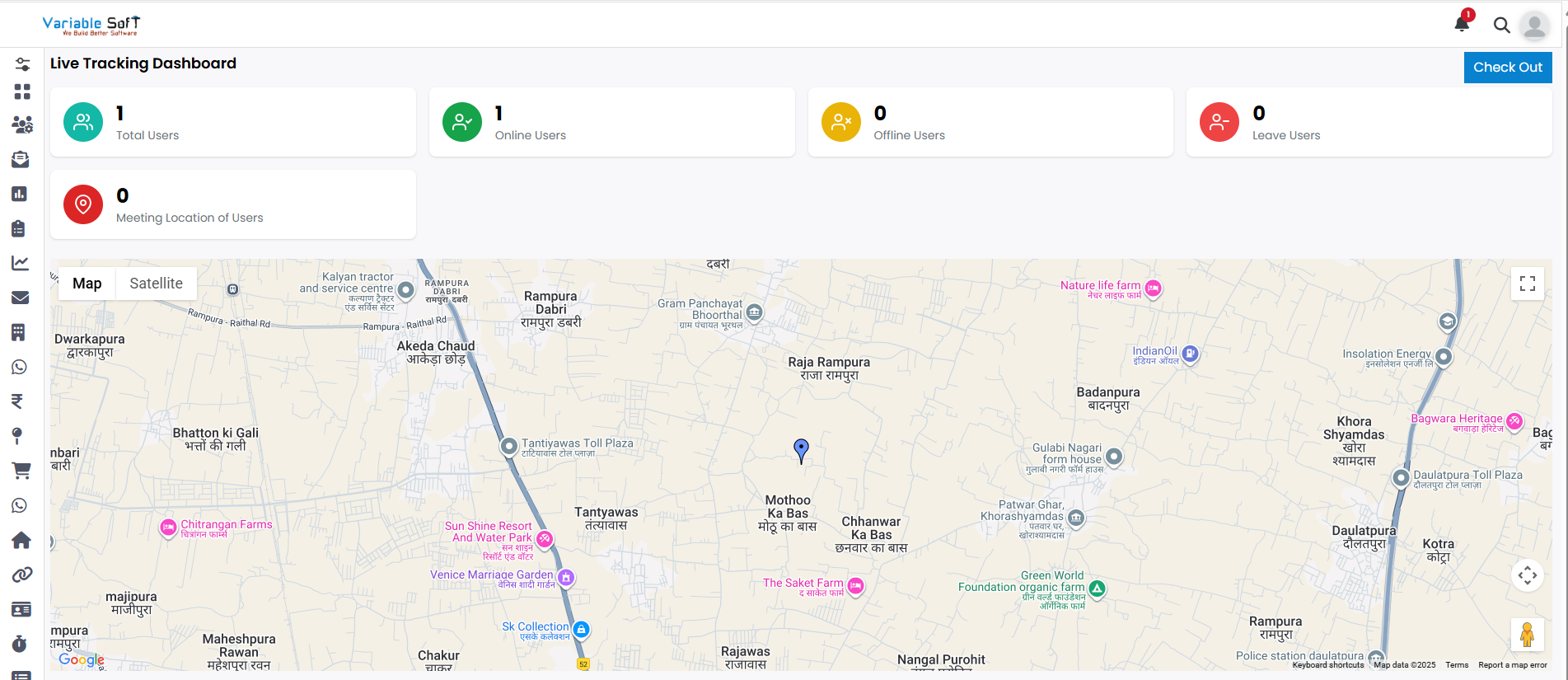
In this section, you can easily monitor your users’ activities in real time.
-
Step 3
As shown in the dashboard image:
- Total Users (No.) – The complete number of registered users.
- Online Users (No.) – Users currently active and connected.
- Offline Users (No.) – Users who are not active at the moment.
- Leave Users (No.) – Users who are on leave and not trackable.
- Meeting Location (No.) – The number of users currently at a meeting point.
-
Step 4
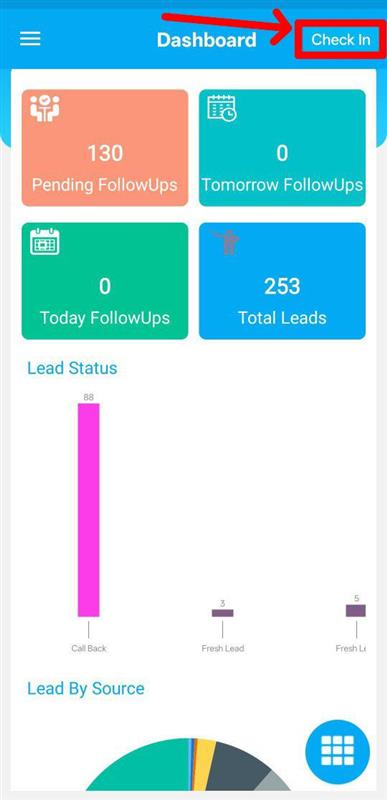
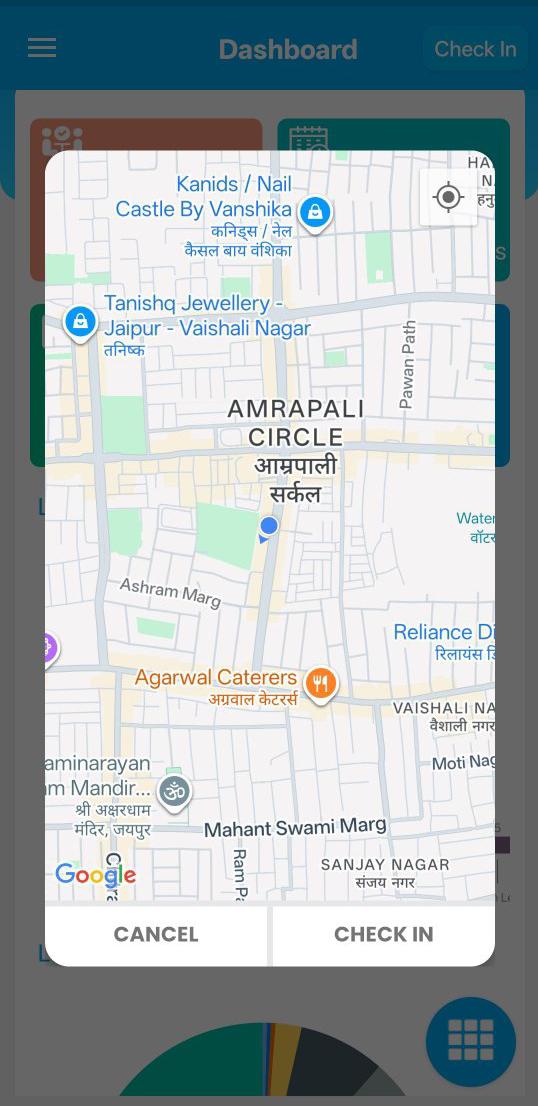
You will also find a Check In button on the top-right side. When you click Check In and enable location, your admin can track your live location. When you Check Out, your location tracking is automatically disabled.
-
Step 5
The map section displays the real-time location of users for better visibility.
Explore Our App Interface
A quick glance at how VSCRM looks on your phone.
💡 Pro Tip: Maximize Tracking Efficiency
Always remember to Check In when starting work and Check Out after finishing. This ensures accurate attendance, location tracking, and helps managers monitor team productivity effectively.