Messages
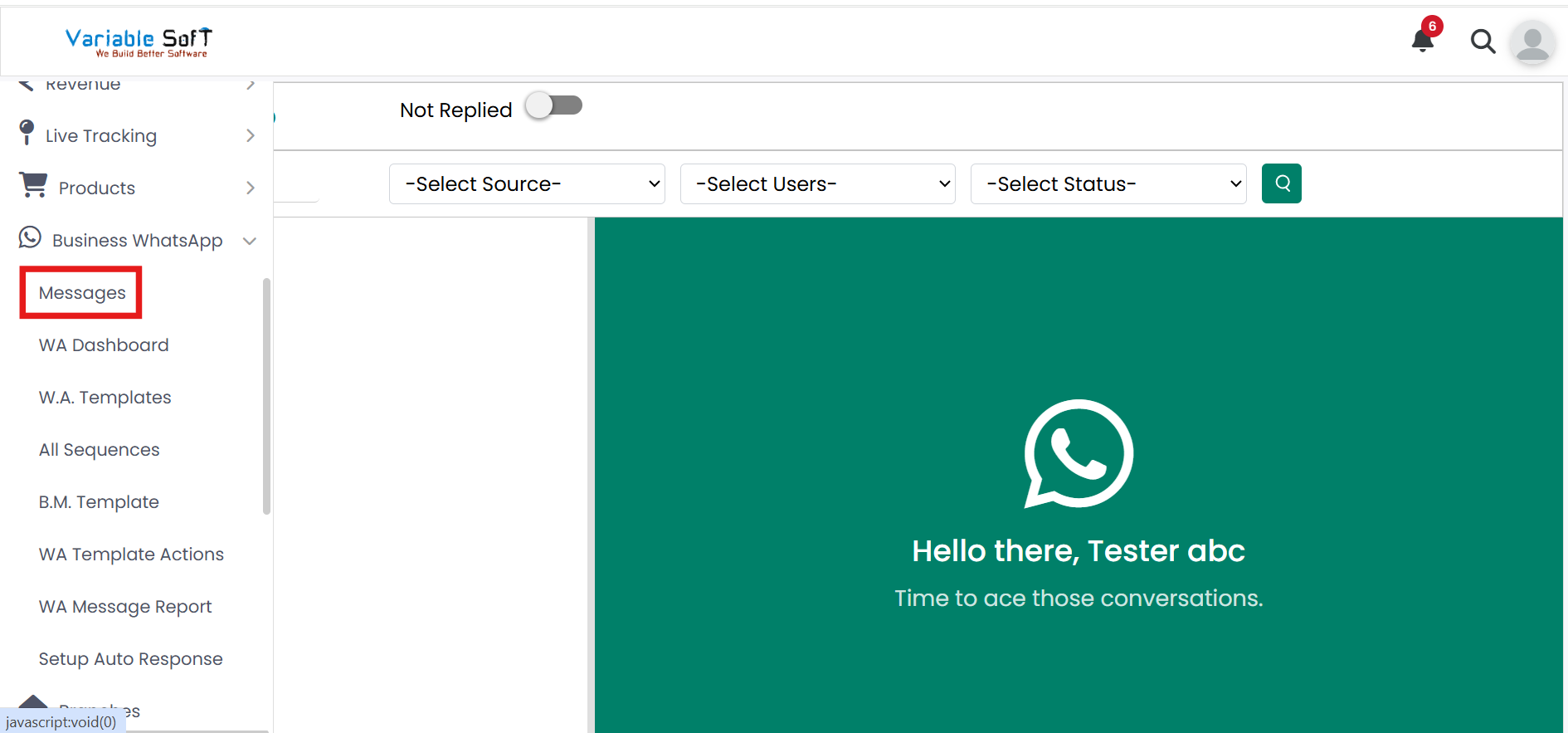
To access this feature, open your CRM Dashboard and click on Business WhatsApp. From the dropdown menu, select Messages to open the Messages page.
Setup Instructions
-
Step 1
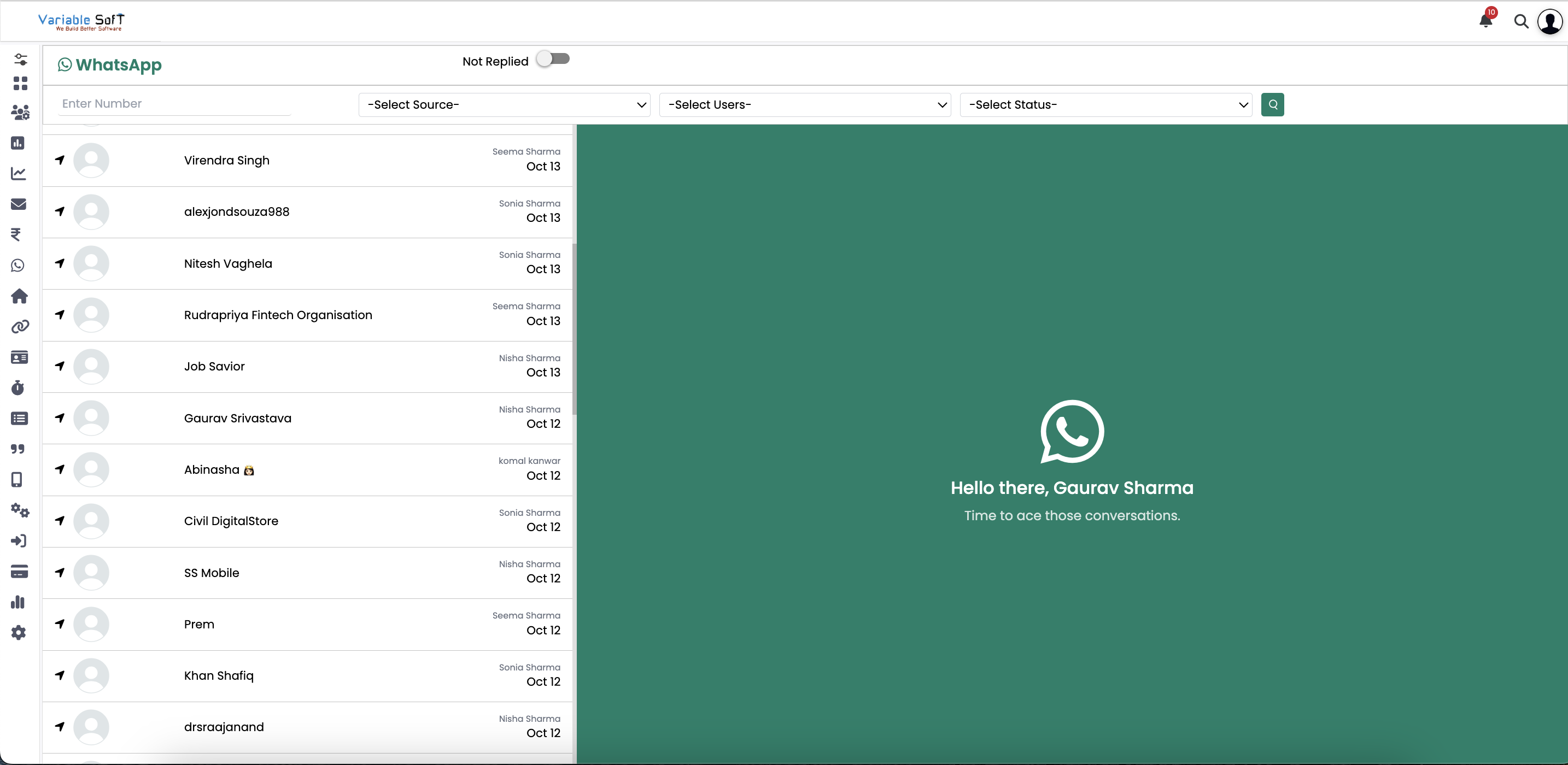
When you open the Messages section, you will directly land on the WhatsApp messaging panel.
-
Step 2
Here, you can view all the incoming messages received from your contacts.
-
Step 3
You can reply to any received message instantly from this panel.
-
Step 4
If you want to start a new conversation, you can also send a fresh message to any contact.
-
Step 5
This section allows you to manage both incoming and outgoing communication smoothly.
Explore Our App Interface
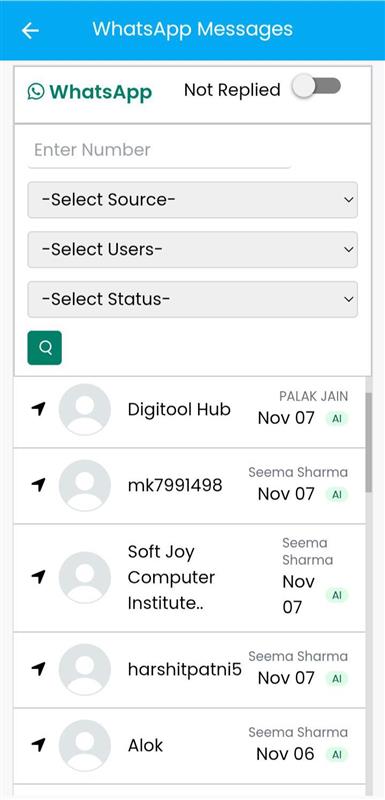
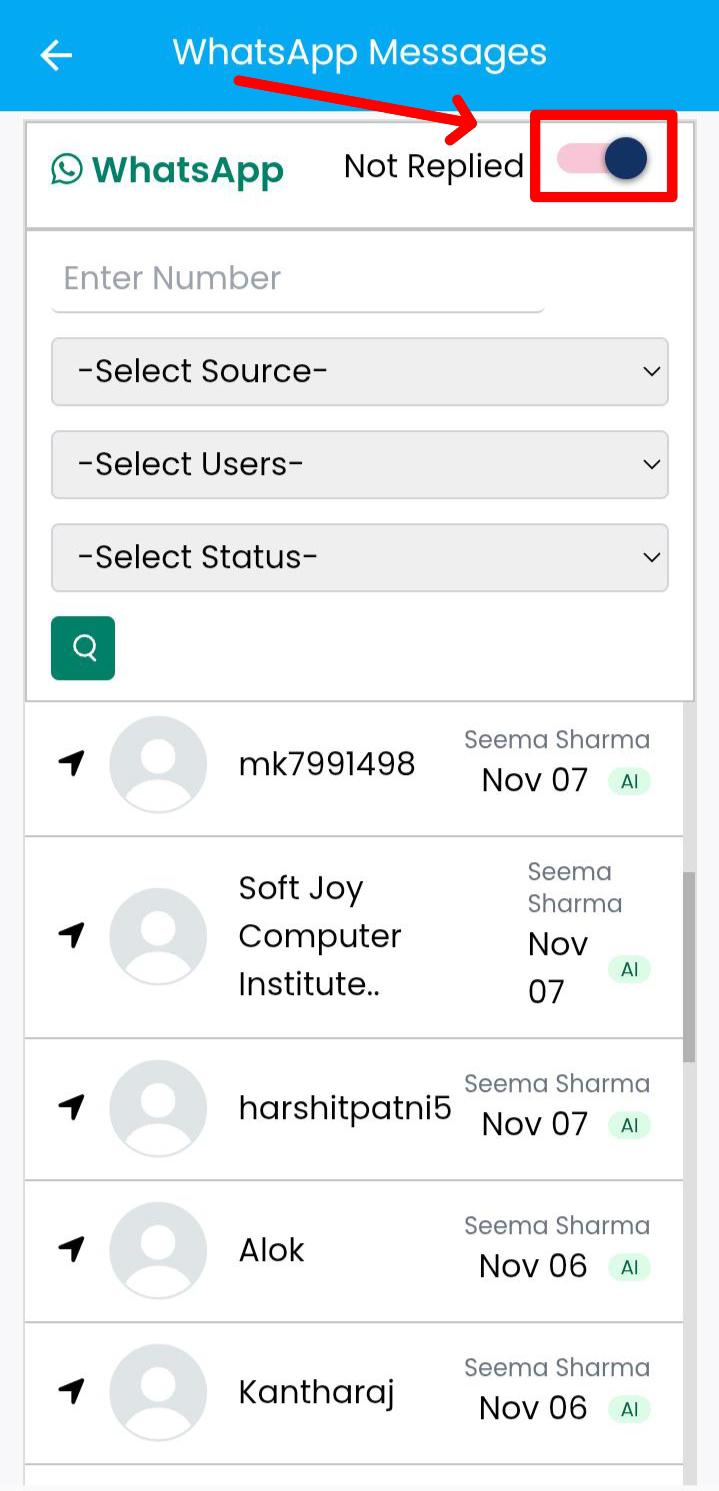
A quick glance at how VSCRM looks on your phone.
💡 Pro Tip: Stay Responsive
Make it a habit to check the Messages section frequently. Quick replies build trust and improve customer satisfaction.