Lead Details

View complete information of a lead and access key actions like revenue, quotation, WhatsApp messages, and follow-up details.

Step-by-step Instructions

  • Step 1

    Click on the First Name of the person whose lead details you want to view.

  • Step 2

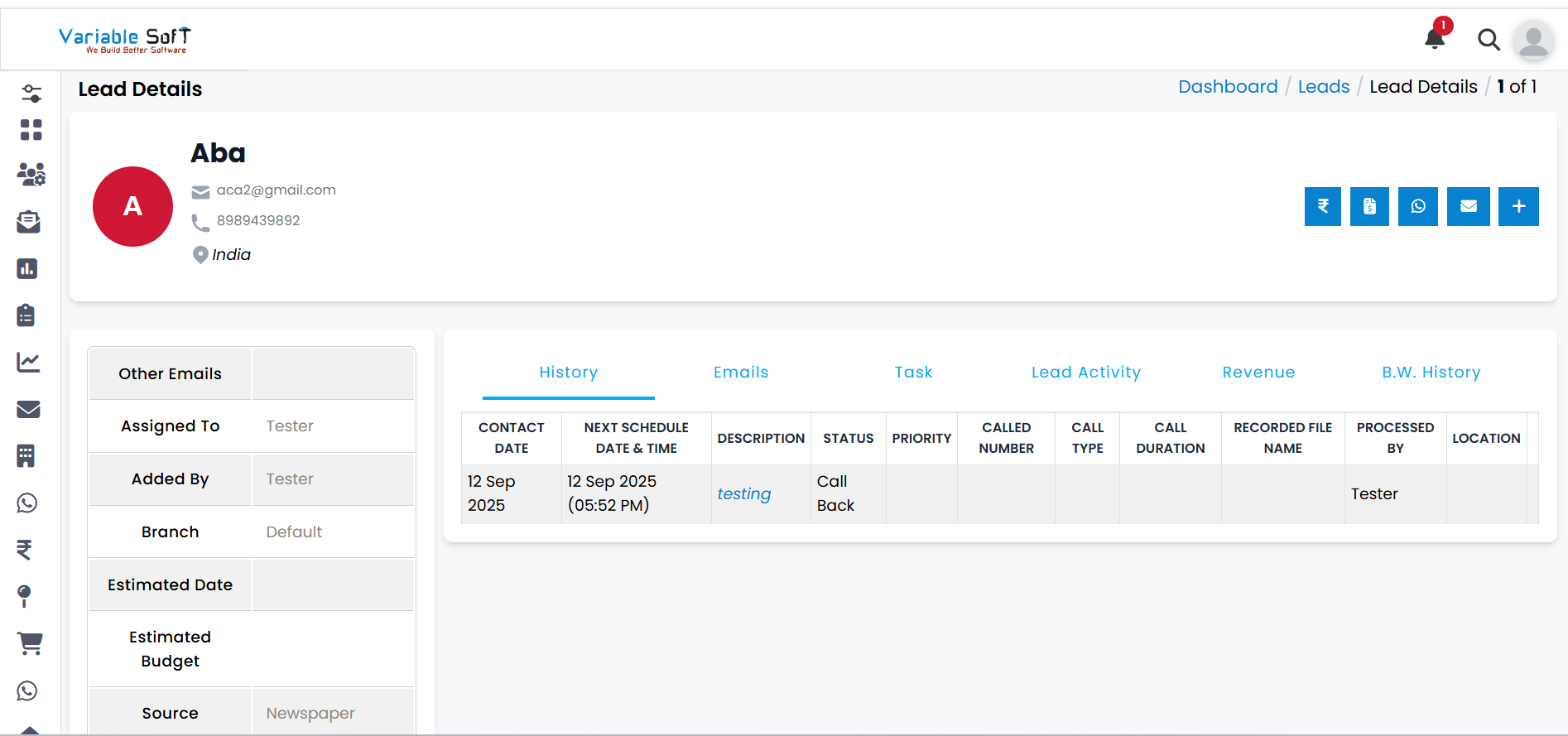
    The Lead Details page will open and show all information related to that lead.

  • Step 3

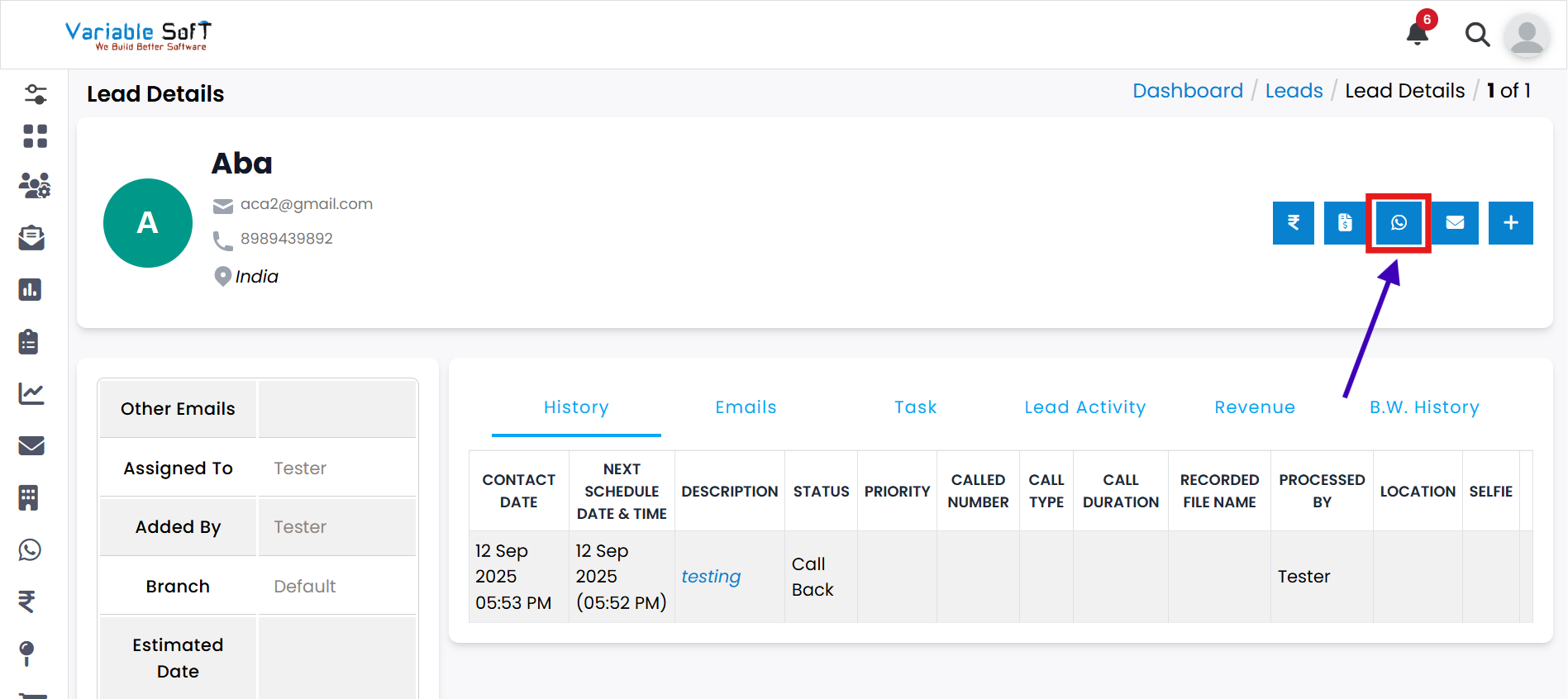
    On this page, you will also see these four important options:

    • Add Revenue
    • Create Quotation
    • Send WhatsApp Web Message
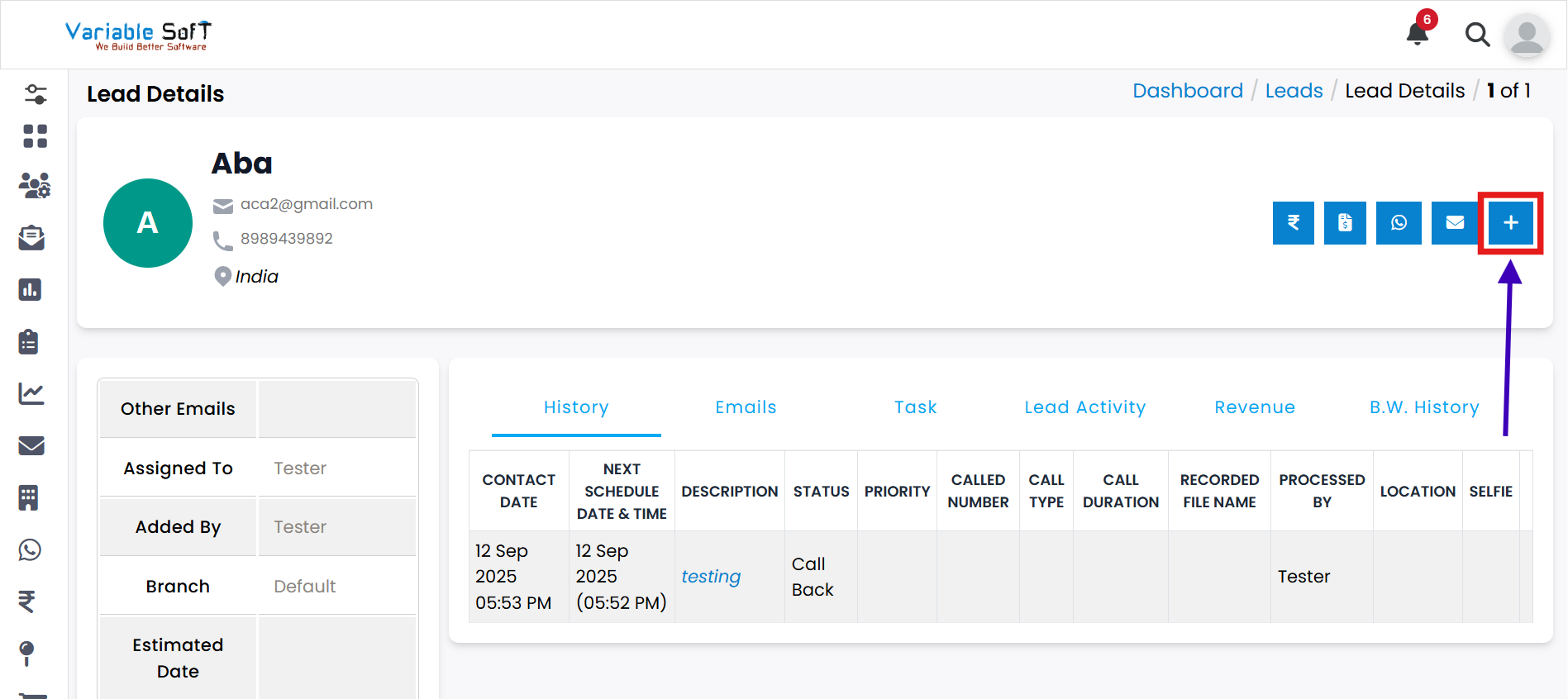
    • Add Details
Lead Details

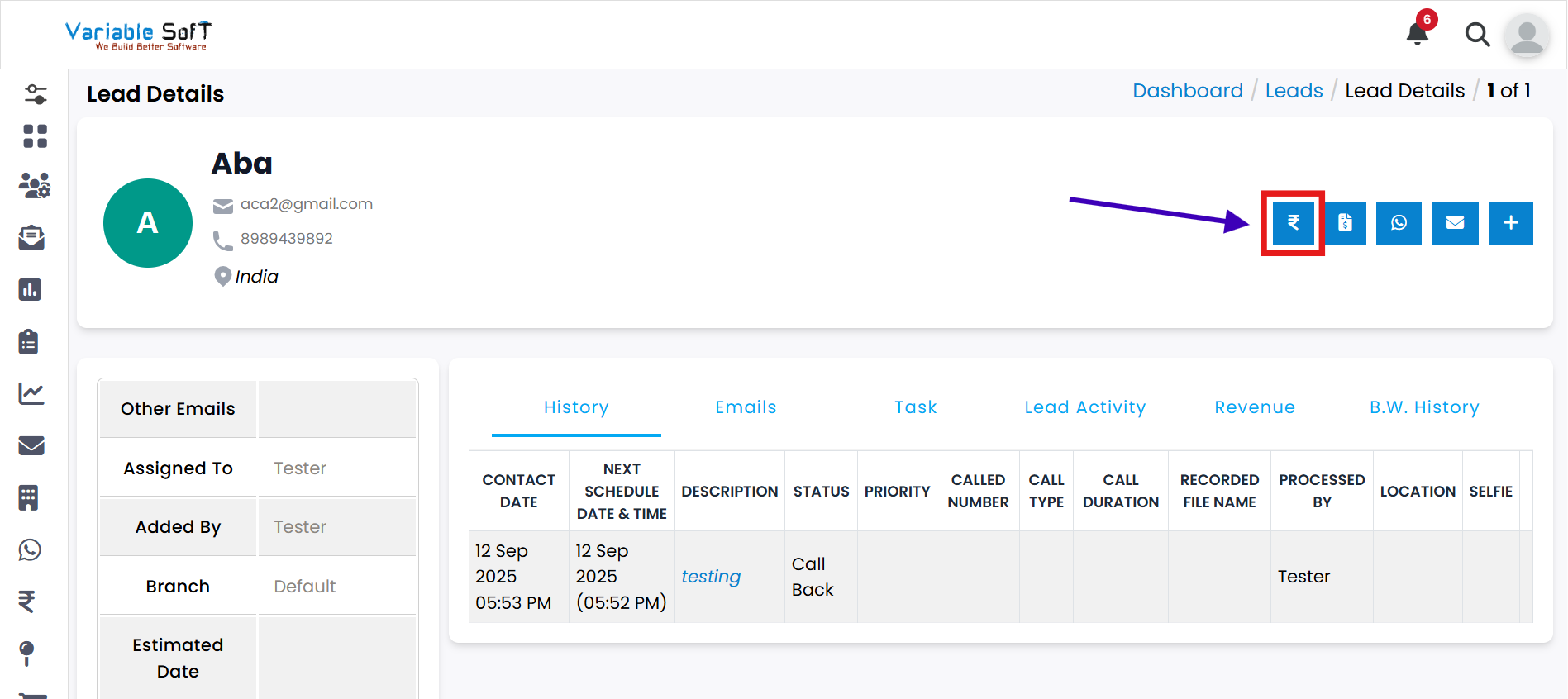
Add Revenue

Step-by-step Instructions

  • Step 1

    Click on the Add Revenue button from the lead details page.

  • Step 2

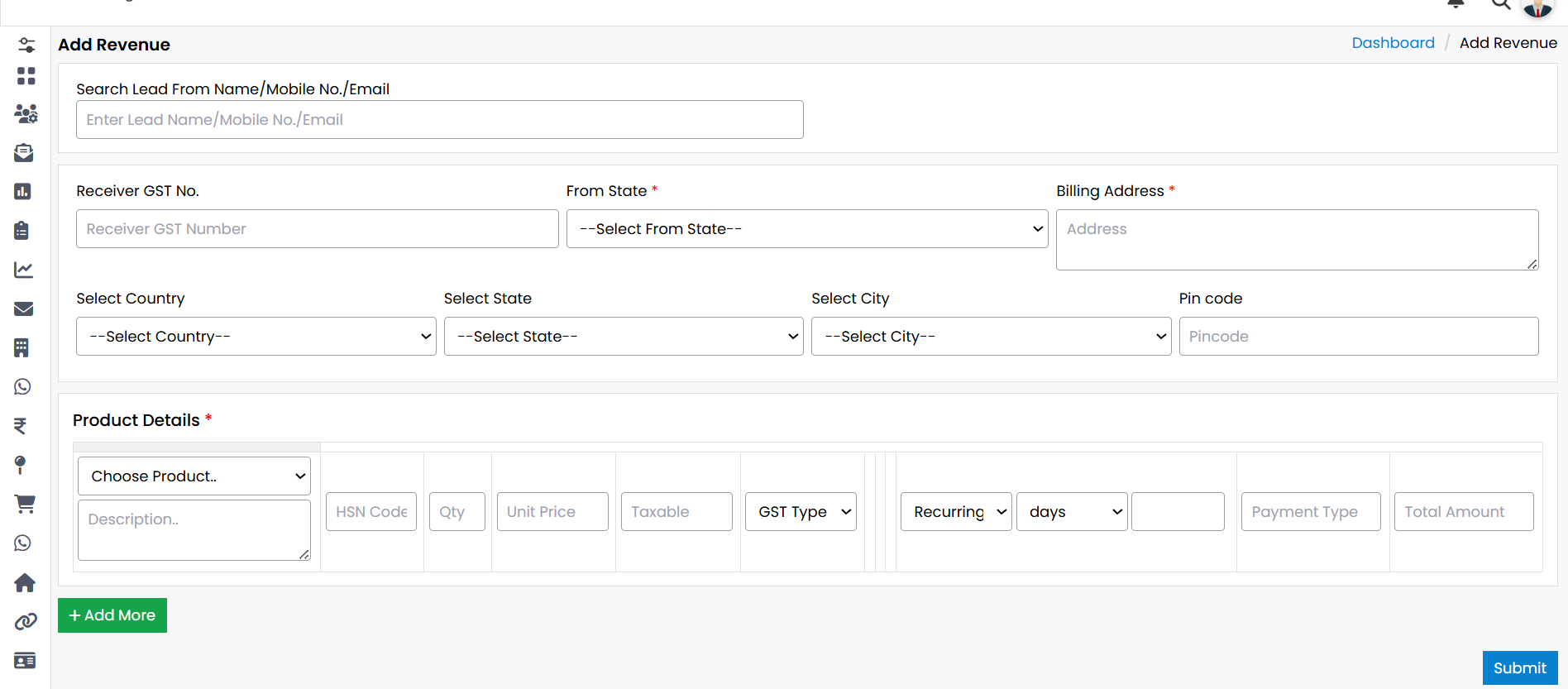
    A form will open. Fill in all the required information like product, amount, tax, etc.

  • Step 3

    If you want to add more than one product, click on the Add More option.

  • Step 4

    Once everything is filled, click on the Submit button.

  • Step 5

    Your revenue will be added successfully and will reflect in the lead’s revenue history.

Add Revenue
Add Revenue – Summary

πŸ’‘ Pro Tip: Track conversion value

Use revenue entries to track how much business each lead generates. This helps in measuring ROI of campaigns and sales performance.

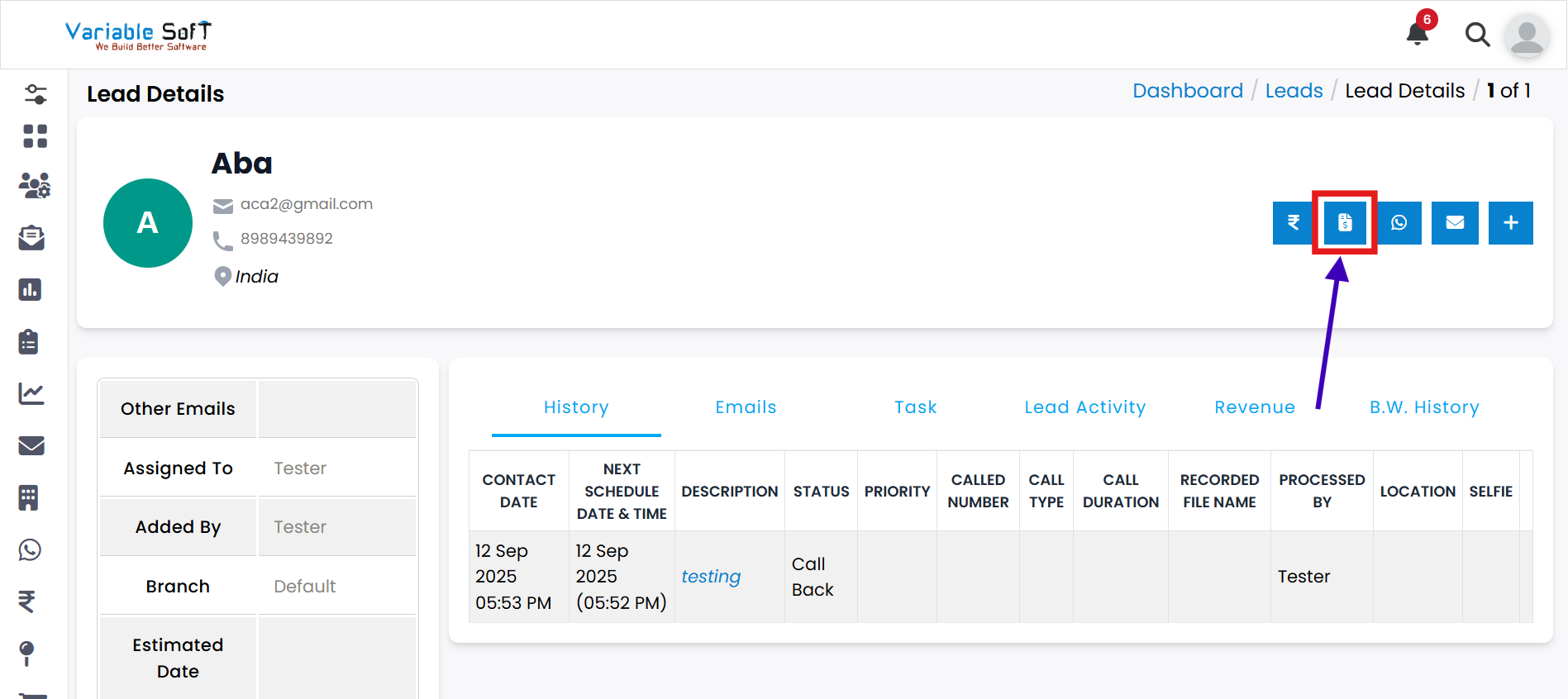
Create Quotation

Step-by-step Instructions

  • Step 1

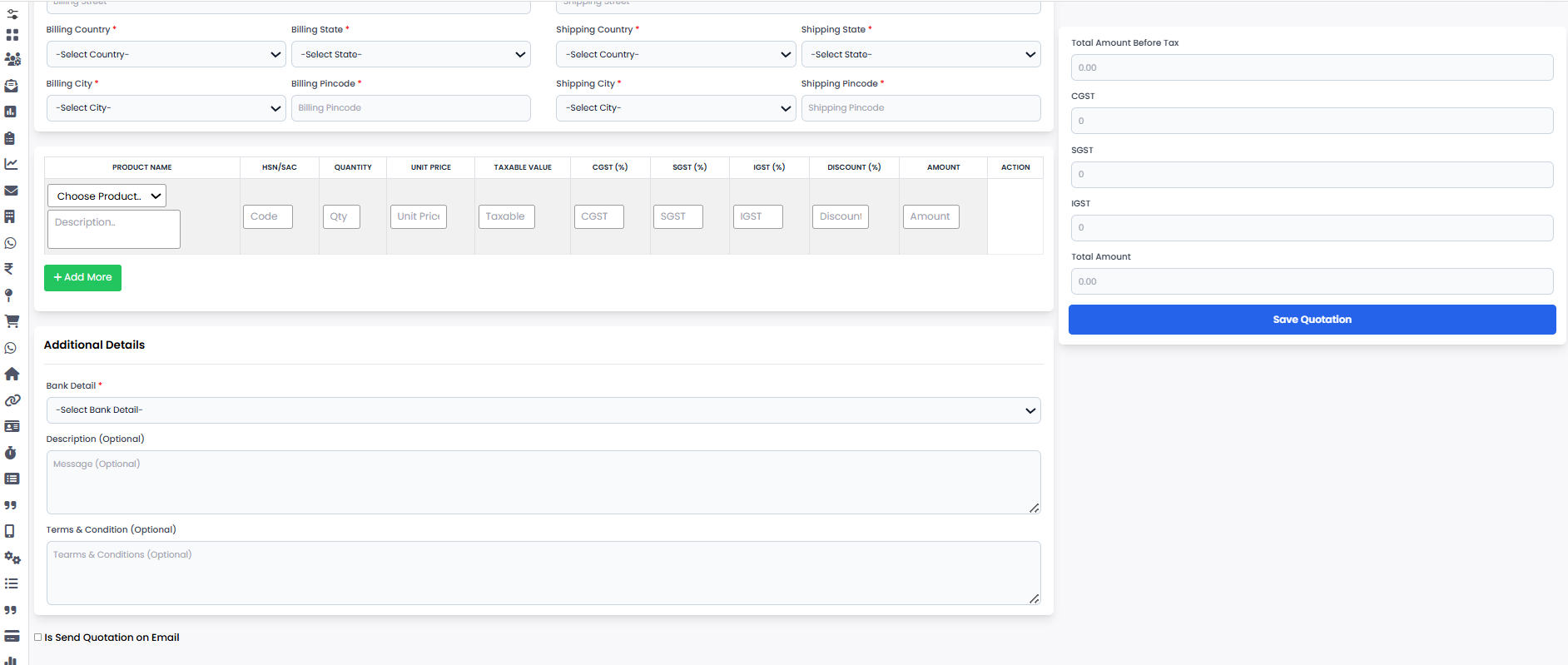
    Click on the Create Quotation button from the lead details page.

  • Step 2

    A quotation form will open. Fill in all the required details such as product, quantity, price, and terms.

  • Step 3

    If you want to add more than one product, click on the Add More option.

  • Step 4

    Once everything is done, click on the Save Quotation button.

  • Step 5

    Your quotation will be created successfully and can be shared with the client.

Create Quotation
Quotation List / Preview

Send WhatsApp Web Message

Step-by-step Instructions

  • Step 1

    Click on the Send WhatsApp Web Message button from the lead details page.

  • Step 2

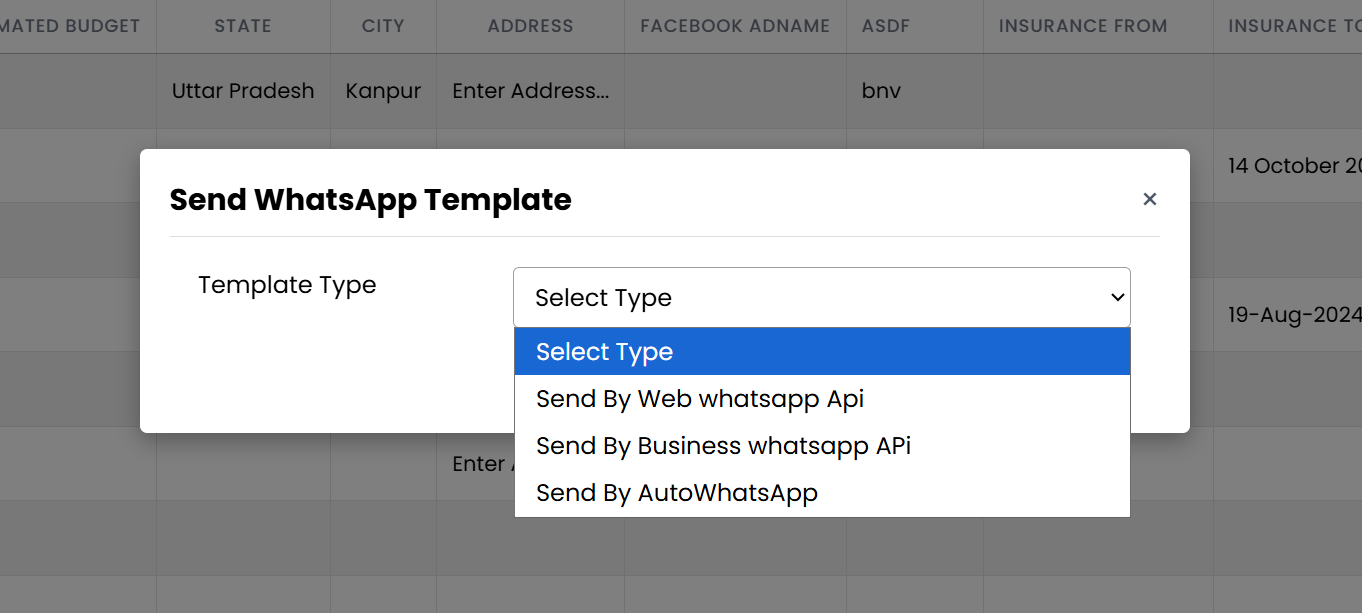
    A pop-up will open. Choose the Template Type as per your requirement.

  • Step 3

    Select the Template you want to send.

  • Step 4

    Choose the Phone Number on which you want to send the message.

  • Step 5

    Click on the Send button.

  • Step 6

    Your WhatsApp message will be sent successfully.

Send WhatsApp Web Template – Popup
Send WhatsApp Web Template – Flow

Add Details

Step-by-step Instructions

  • Step 1

    Click on the Add Details button from the lead details page.

  • Step 2

    Select the Status according to your requirement (e.g., Follow-up, Interested, Not Interested, etc.).

  • Step 3

    Add any important remarks or notes for this lead.

  • Step 4

    Click on the Submit button.

  • Step 5

    Your details will be added successfully and visible in the lead’s activity / follow-up history.

Add Lead Details – Form
Add Lead Details – History

πŸ“ Follow-up Tip

Always add clear notes and status updates. It helps your team understand the latest conversation and plan the next follow-up smartly.