Transfer Lead Status
Step-by-step Instructions
-
Step 1
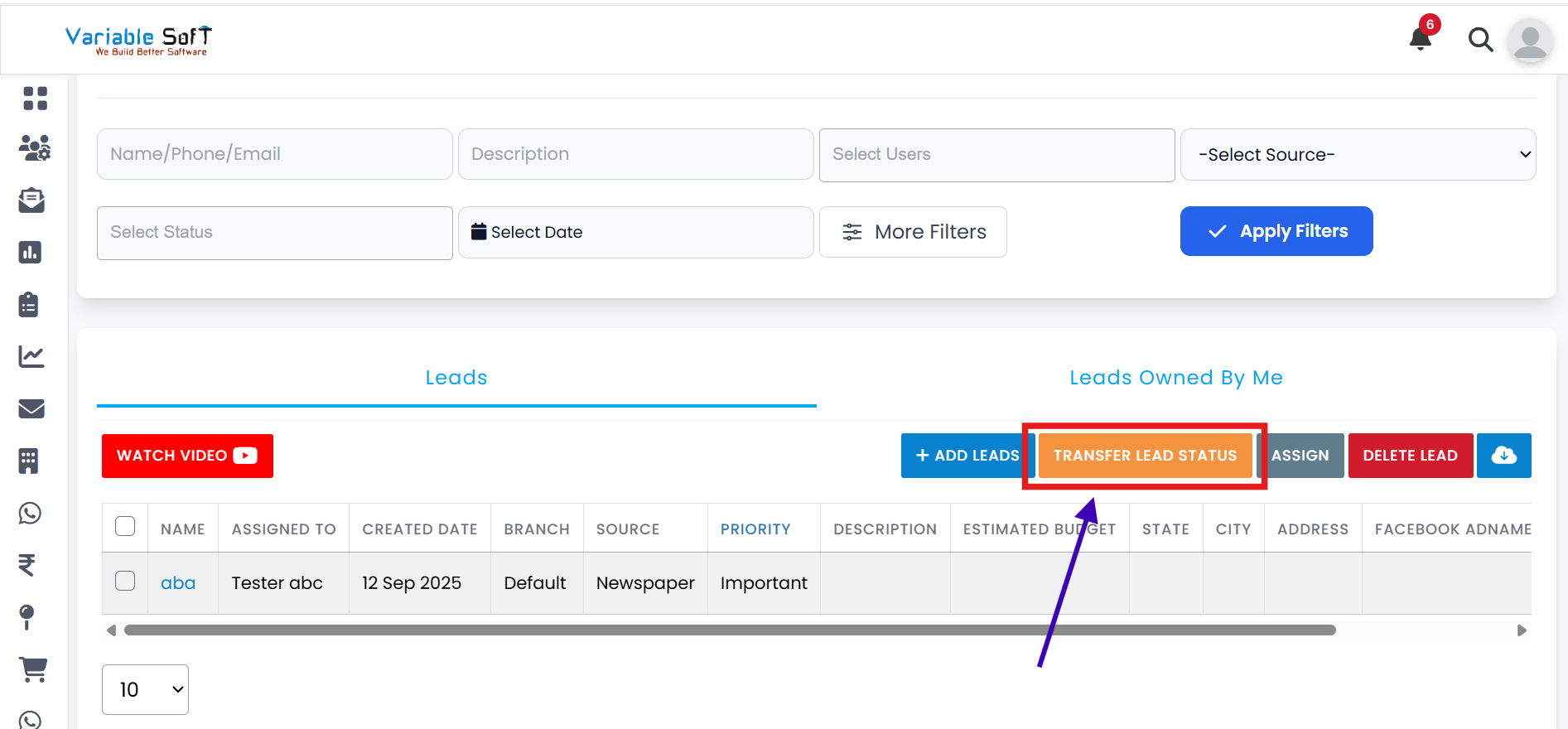
First, select the lead you want to update from the list.
-
Step 2
If you click Transfer Lead Status without selecting a lead, a message will appear: "Please select lead first".
-
Step 3
Click the checkbox next to the lead (or multiple leads) to select them.
-
Step 4
After selecting the lead(s), click on the Transfer Lead Status button from the action bar.
-
Step 5
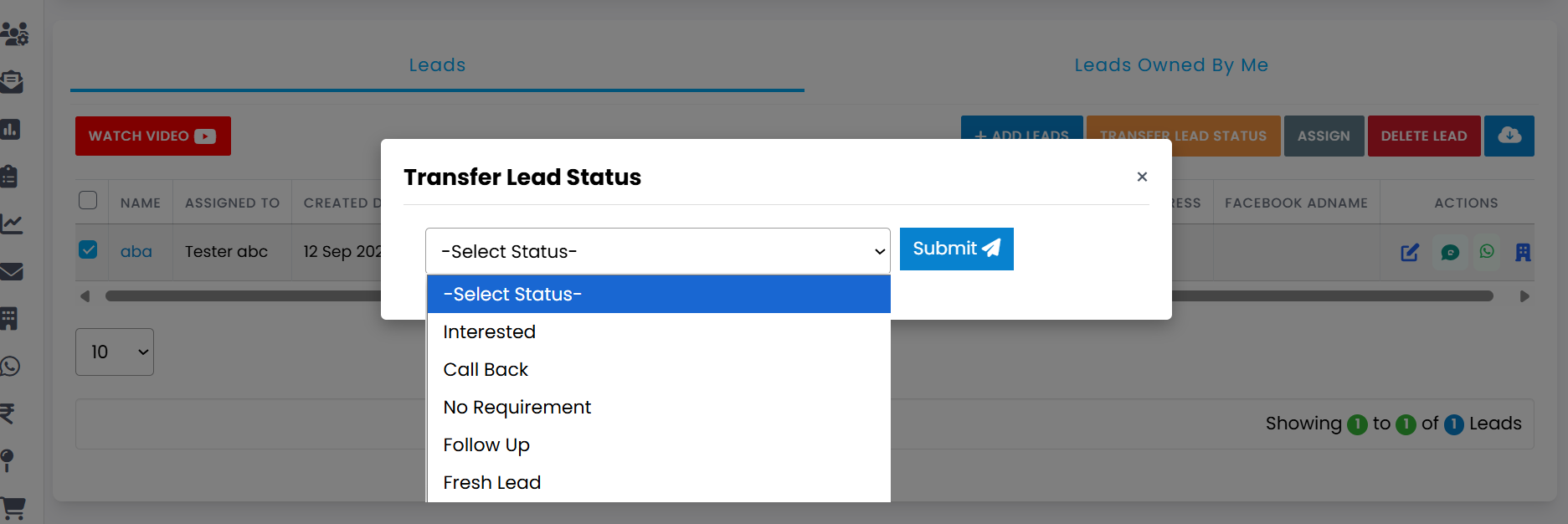
A dropdown or modal will appear with the option to Select Status.
-
Step 6
Click on the Select Status field to view the list of available lead statuses.
-
Step 7
Choose the status you want to assign to the selected lead(s).
-
Step 8
Once selected, click on the Submit button.
-
Step 9
The lead status will now be successfully updated in the system.
Pro Tip: Bulk update multiple leads
You can select multiple leads at once and use Transfer Lead Status to update all of them together. This saves time and keeps your pipeline clean and consistent.